
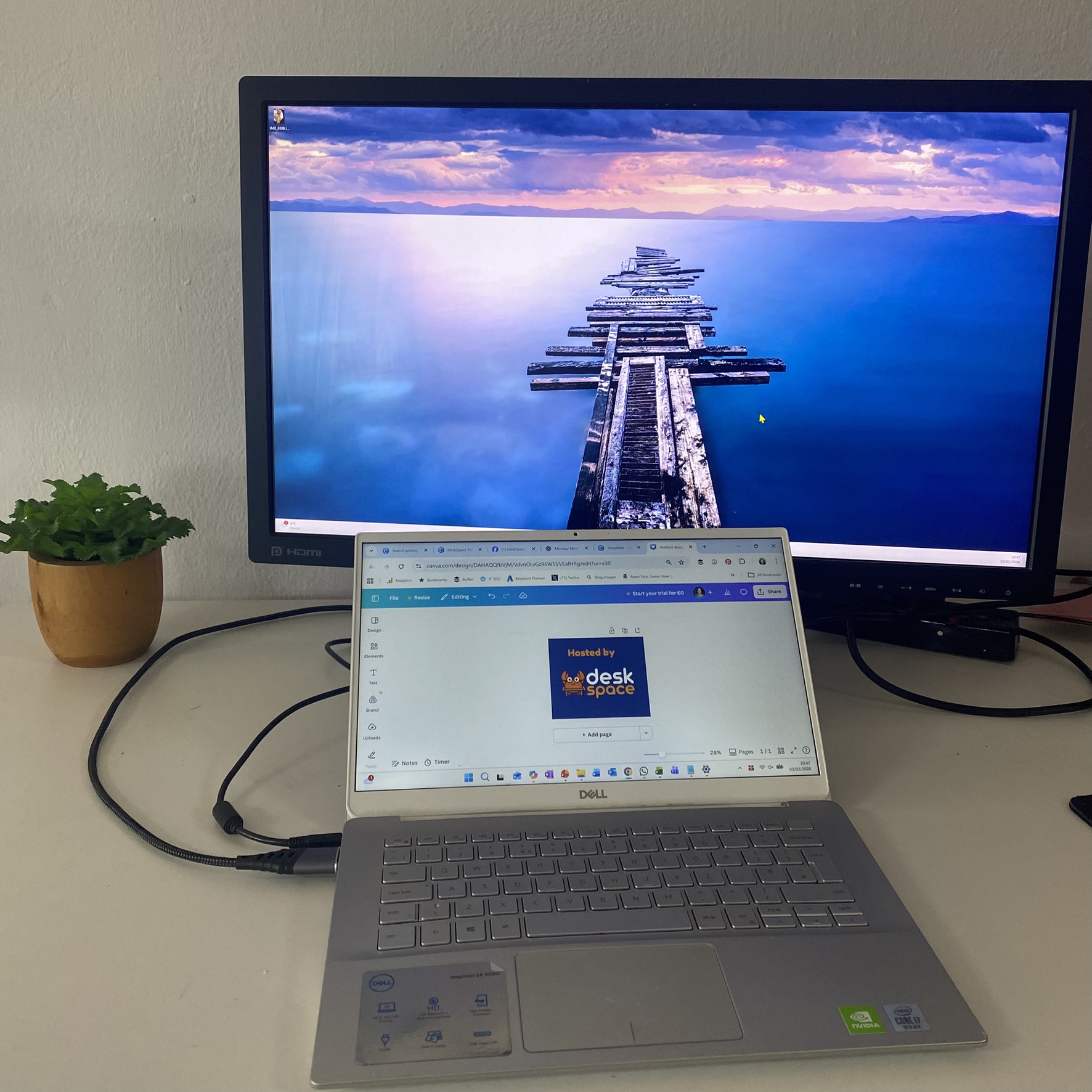
🚀 Why External Monitors Are a Game Changer at DeskSpace
Here at DeskSpace coworking, we provide external monitors for our clients — and honestly, once you try one, it’s hard to go back – the productivity gain is (as one client this week said) “revolutionary”.
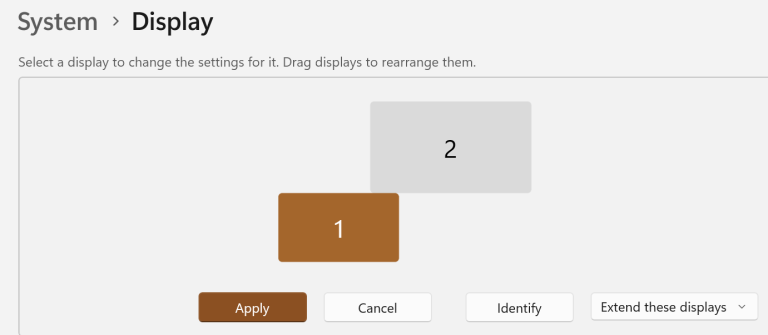
I’ve always found a second screen to be a game changer: more space, less clutter, better focus. I set mine up to extend my screen (different things on each screen and can “drag” things between), not just duplicate it, so I can work with multiple windows side by side (or up and down).
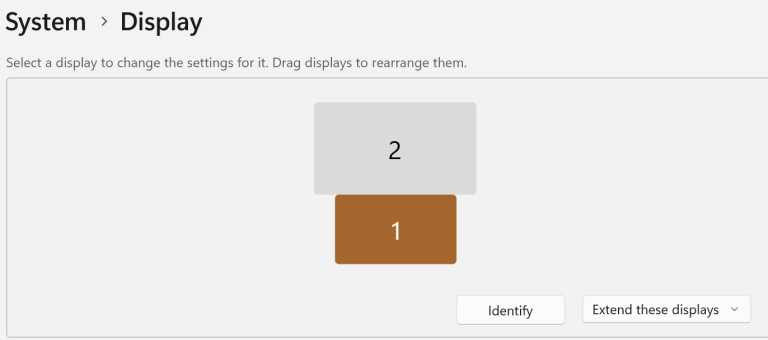
💡Pro tip: I love stacking screens vertically (up and down) — it feels like turbo-charged multitasking. The arrangement of the screens can be specified for the way you work – and makes how the mouse move more logical. Below are three examples.
Stacked – with the external display sitting above
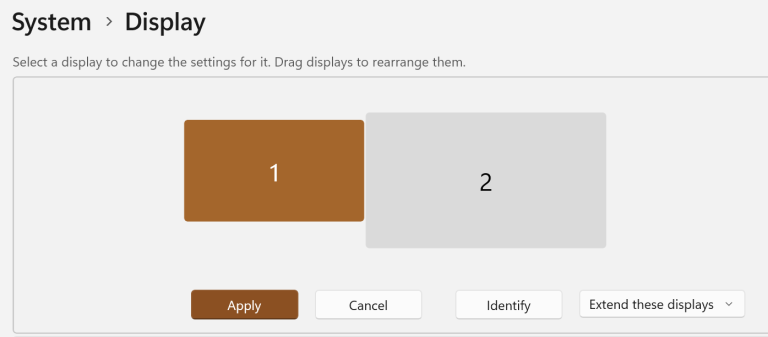
Side by side – with the external display sitting to the right
Set up at an angle – with the external display sitting above and to the right
🖥Comfort + Productivity = Win
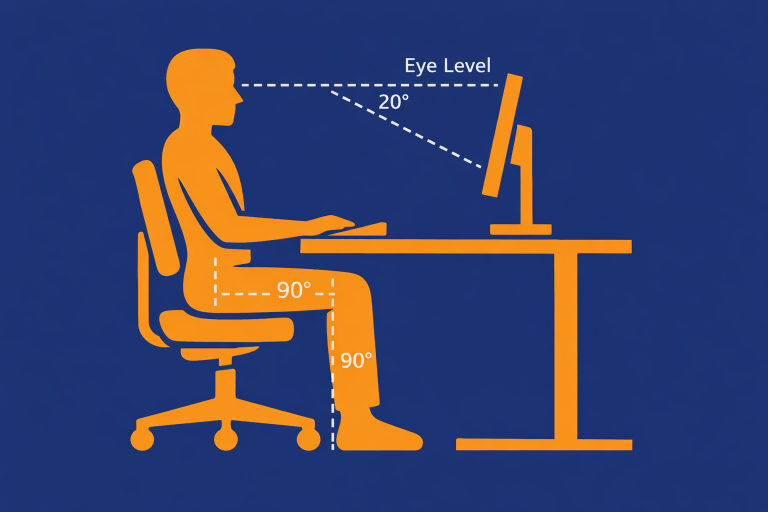
Another bonus? Ergonomics. It’s too easy to spend the day hunched over a laptop [spoiler alert – not good for your posture]. A larger, adjustable monitor at eye level is more comfortable and easier on your neck and shoulders.
We’ve noticed some clients hesitate to use an external monitor. My wife has experienced this too: it should work, but you catch yourself thinking:
“Will it really?”
“Will I look stupid if it doesn’t?”
Sometimes it’s easier to say, “I don’t need it, thanks.” But trust us — these monitors increase productivity, and we’ll help you get set up.
One client on Monday described having an external monitor (and a bigger, slower mouse) as “Revolutionary.” Not Che Guevara-style revolutionary — more like small tweaks, big difference.
🖱 Don’t Forget the Mouse
Extra screen space can make a tiny pointer from your mouse disappear. For one client, things were moving too fast.
Here’s a quick Windows fix:
(from Settings)
- Slow the pointer speed
- Change the pointer color
- Make it bigger
This morning, a client said:
“This is revolutionary to the way I work.”
We’ll take that. Small changes, revolutionary difference.
✅Your Turn
You can try these tweaks right now — and see the difference immediately. Bigger screen, smarter mouse, less strain, more focus.
Here at DeskSpace we have different desks (including standing desks) and different chairs.